


4 Top Tips to Help Grandma Use Smartphones
Product 2021-07-02
In a digitalized world, no one can avoid daily use of digital devices. As demonstrated in the chart below, the quantity of senior adults above 65 years old owning smartphones in the US has increased sharply from 2015 to 2021, with a total growth of 31%.

However, the elder people might find it quite intractable to accustom themselves to newfangled gadget (click here to check detailed analysis). Probably your grandma is always troubled with problems such as hard to find an app; unable to install an app; don’t know how to start a video call; or forget phone number during an emergency, etc.
Moreover, when you are not around her, it’s so not convenient to explain technical matters or solutions via plain language without viewing the screen together. A big headache? Chin up! Here are 4 most useful tips to better help Grandma cross the threshold of using smartphones.
1) Make the Home Screen Clean and Clear
Apparently, we don’t want the little phone screen to hinder Grandma’s use. Therefore, a disorder-free home screen with large, simple icons assists Grandma in fast recognizing. Keep in mind that the less apps the phone has, the easier it is for Grandma to operate. Minimizing application quantity installed on her phone is essential.
2) Increase Font Size
Another common complaint from Grandma regarding any smartphone is the tiny text character. Do change font size to “Large” or “Huge” to enable elder-friendly text reading. It is much better for Grandma’s eyesight.
3) Set Up Useful Shortcuts
Check with Grandma what apps she often uses regularly. Then according to frequency of use, put the mostly used apps on the home screen. You can even customize a dock for Grandma’s convenience consisting of no more than 4 app icons. For example, a combination of Contacts, Messages, Photos and Web.
4) Install AweSun for Remote Support
The problem left are how to help Grandma to install an app and how to start a video call remotely? To realize this, we need to be able to remotely view and control grandma’s phone. Thus, we need to employ a remote support software. A cost-effective choice is AweSun.

Simple Steps to Remote Control Grandma’s Android Phone
- Download AweSun on your computer or smartphone.
- Download AweSun Client on your grandma’s Android phone.
- Register and log into the same account on both sides.
- Enable “Ancillary Services” in AweSun Client to permit remote control without ROOT required. (Click here to see instruction)
- Find Grandma’s device in the “Device” and click “Desktop Control” to start remote control.
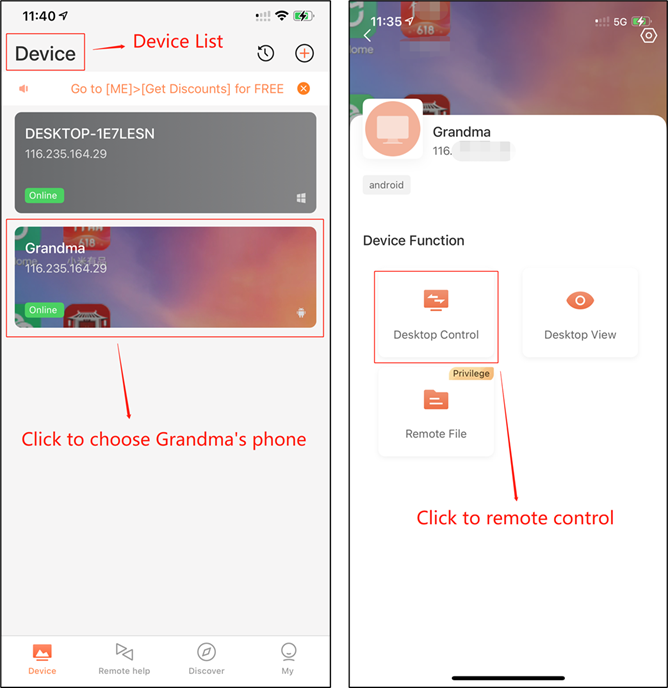
Note:
- For remote control, only Android phones are supported to be controlled.
- For Android 7.0 and above version, with AweSun Client updated to v1.0.17, no ROOT is required for enabling remote control.
- For Android below 7.0 version, ROOT is required for remote control.
About AweSun
AweSun, also known as AweSun Remote Desktop, is a remote access software that provides secure, stable, and professional remote control services. Aside from remote view and remote control, AweSun provides a multitude of features such as file transfer, session recording, clipboard sharing, and whiteboard, etc. AweSun team is committed to helping people with remote support anytime and anywhere.
Undoubtedly, it feels wonderful to bring Grandma into the modern mobile computing world and help her to walk the bleeding edge. Let’s troubleshoot Grandma’s smartphone problems now: https://sun.aweray.com/download/

 3
3RECOMMENDED

News 2023-02-23
Instructions on Youtube anti-fraud videos
Product 2022-01-25
3 Essential Tips of Remote Desktop